
Blackwall Bot Guard is an intelligent web application firewall (WAF) and security service that protects your website from malicious traffic, hacking attempts, and automated attacks.
The service works by continuously analysing incoming traffic to detect and block threats before they reach your server. Blackwall helps protect against:
- SQL injections
- Cross-site scripting (XSS) attacks
- Brute-force login attempts
In addition, Blackwall uses:
- real-time traffic filtering
- rate limiting
- IP reputation checks
Blackwall ensures that only legitimate visitors can access your website, while reducing server load and maintaining high performance.
Installing Blackwall
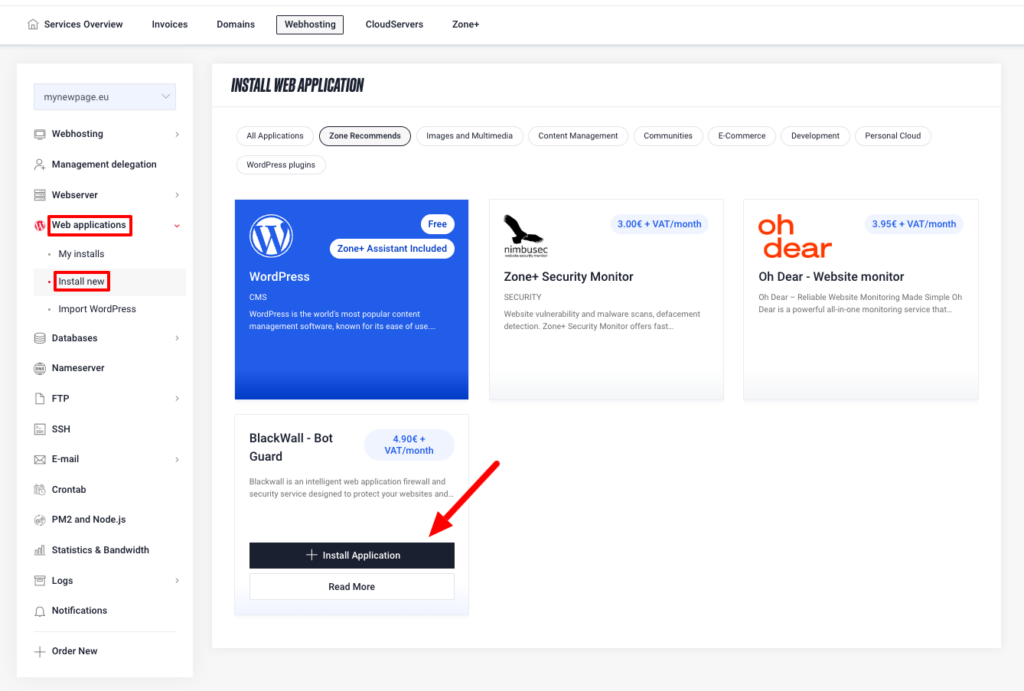
In order to install Blackwall go to My Zone control panel, choose Web-hosting (f you have multiple hosting services, choose the one where you want to install Blackwall), then Web applications, Install new, choose Blackwall ja +Install application.
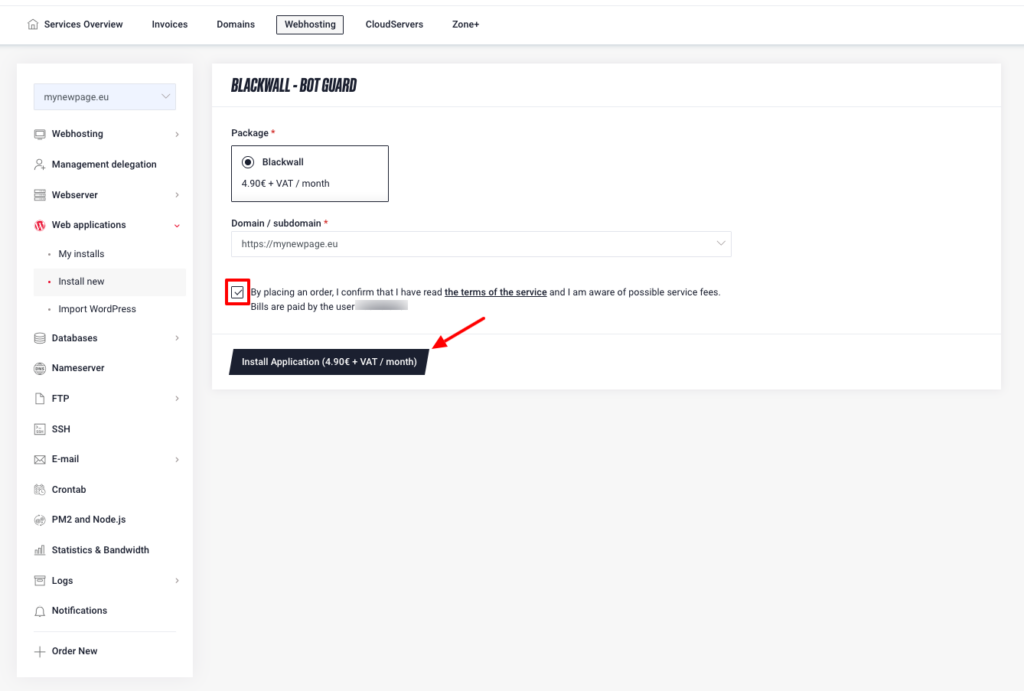
Next step is to agree to the terms of service and then click Install Application.
Configuration (if nameservers are not pointing to Zone)
If your domain’s nameservers are not pointing to Zone, you need to direct your domain’s A records to the following IP addresses:
- 217.146.78.21
- 217.146.78.23
- 217.146.78.25
Core Rules
Core Rules are Blackwall’s default security rules that apply to all websites. They form the foundation of protection and work together with rulesets and custom rules.
Core Rules include predefined logic for managing bot traffic and generally divide visitors into two groups:
- “good” visitors (e.g. search engines, social networks, regular users)
- “bad” visitors (e.g. attackers, scrapers, suspicious traffic)
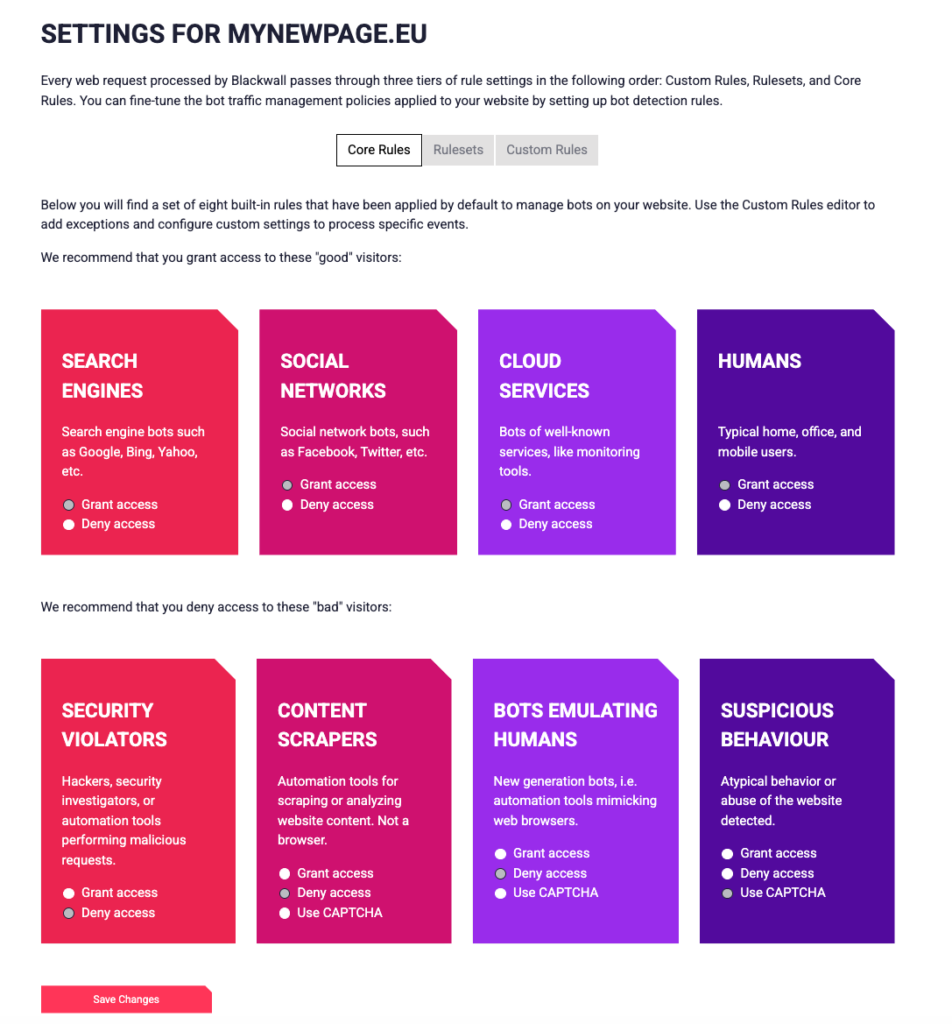
Recommended Core Rule settings
Blackwall recommends:
Allowing access to:
- search engines (Google, Bing, etc.)
- social network bots (Facebook, Twitter, etc.)
- well-known cloud services and monitoring tools
- real users (humans)
Restricting or blocking:
- security violators and attacks
- content scraping bots
- bots mimicking real users
- suspicious or abnormal behaviour
In some cases, you can also enable CAPTCHA to verify whether the visitor is a real user.
Custom Rules
Custom Rules allow you to create precise rules for allowing or blocking traffic.
Examples:
- To block a specific IP address, create a rule that denies traffic from that IP
- To allow a specific bot (e.g. Googlebot), create a rule that allows the specific user-agent
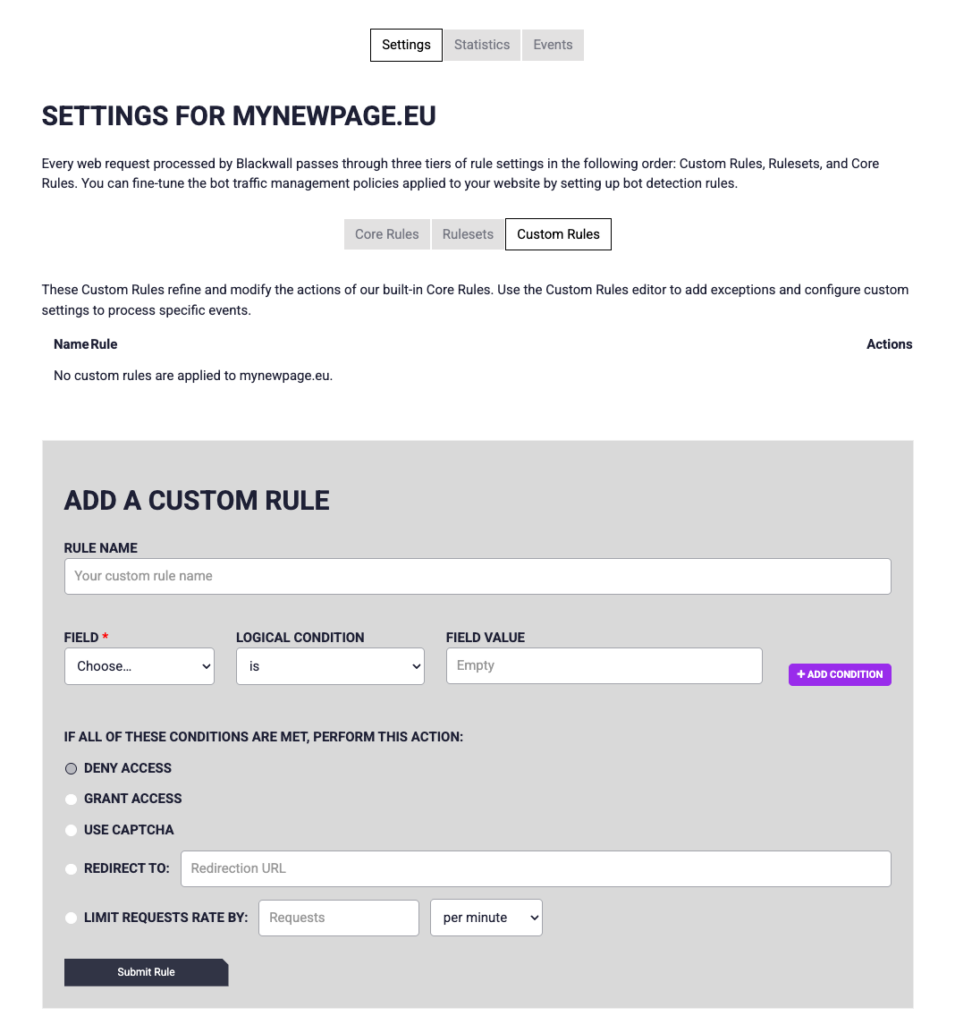
Custom rules are useful in situations where automatic protection needs fine-tuning (e.g. to avoid false positives).
Rulesets
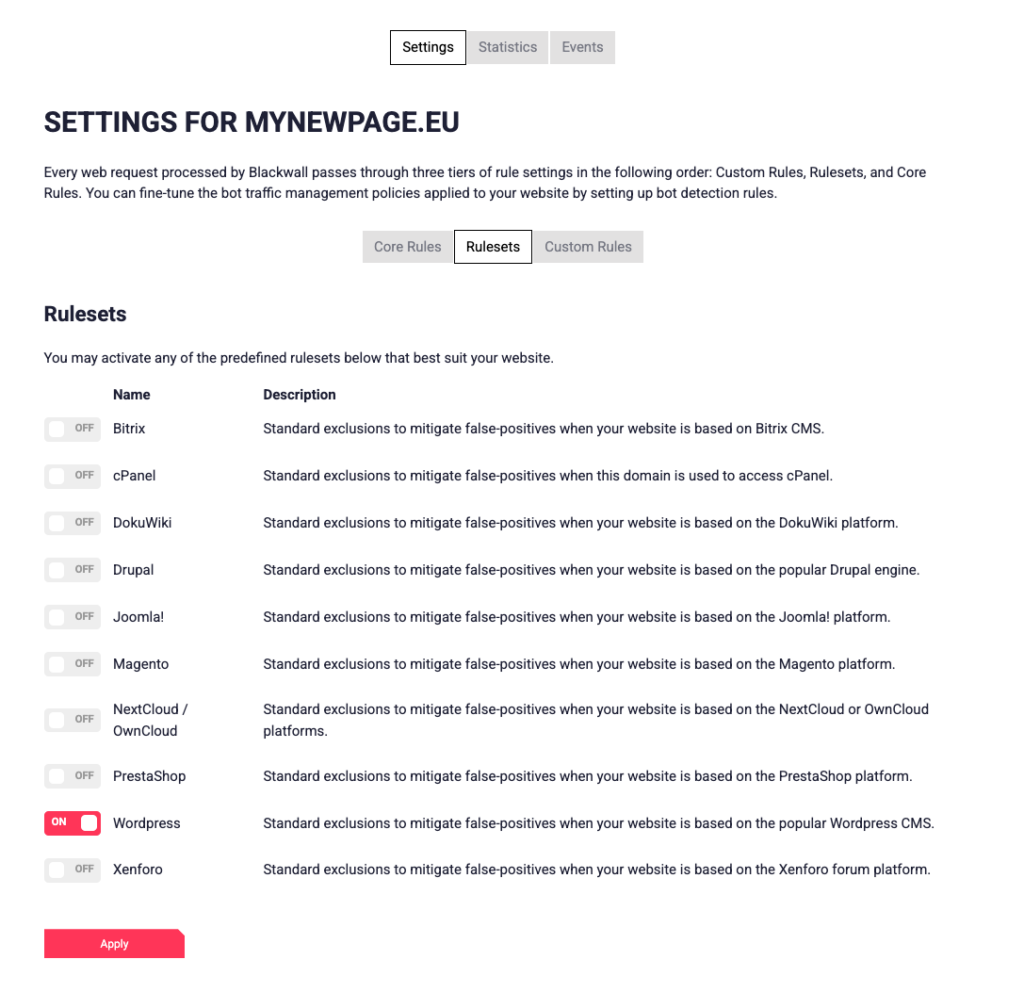
Rulesets are predefined collections of rules for different platforms (e.g. WordPress and other common content management systems).
By default, the WordPress ruleset is used, which is suitable for most WordPress websites.
You can choose a different ruleset based on your website’s technology. Rulesets include protection against typical attack patterns and vulnerabilities for specific platforms, meaning additional manual configuration is usually not required.
Blocklists and fine-tuning
Blackwall allows you to manage:
- IP blocklists
- allowlists
- other advanced security settings
This enables you to:
- block known malicious sources
- allow trusted services, bots, or IP addresses
Statistics
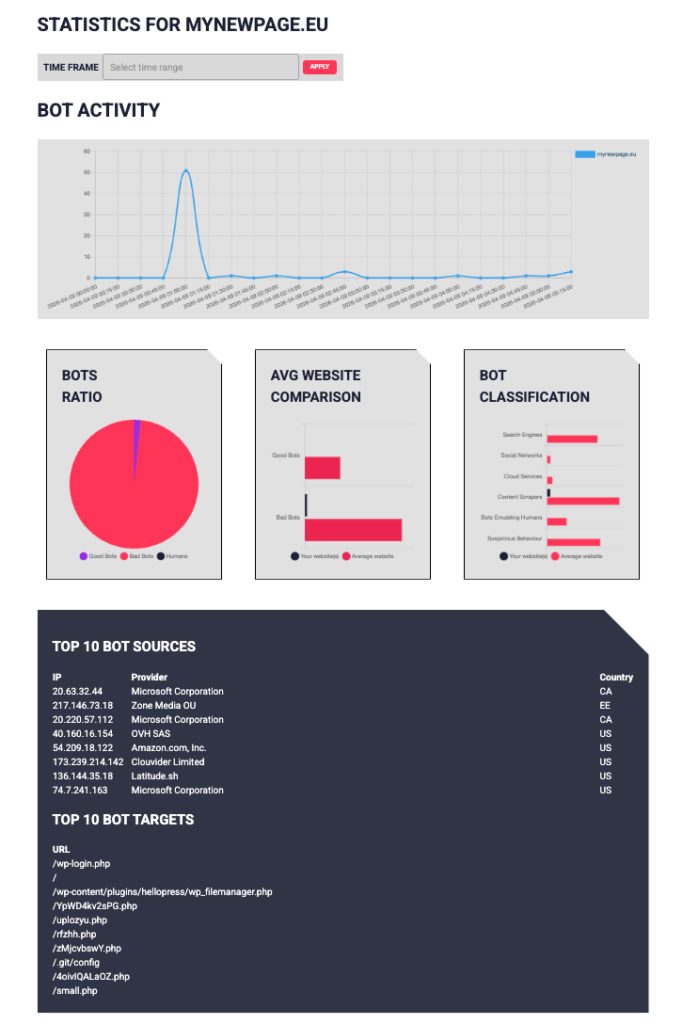
In the Statistics view, you can see:
- how many requests your website receives
- how many are allowed or blocked
- which countries or IP addresses traffic originates from
Since Blackwall filters traffic in real time, statistics provide a clear overview of:
- how much malicious traffic has been blocked
- which sources generate load
- whether your website is under attack
This helps quickly identify unusual or malicious activity.
Events
In the Events view, you can see a detailed log of all requests processed by Blackwall. This helps you understand what kind of traffic your website receives and how Blackwall responds to it.
The Events table includes, for example:
- date and time
- visitor IP address
- country and provider
- traffic category (e.g. Content Scrapers, Bots Emulating Humans)
- applied action (e.g. allow, block, CAPTCHA)
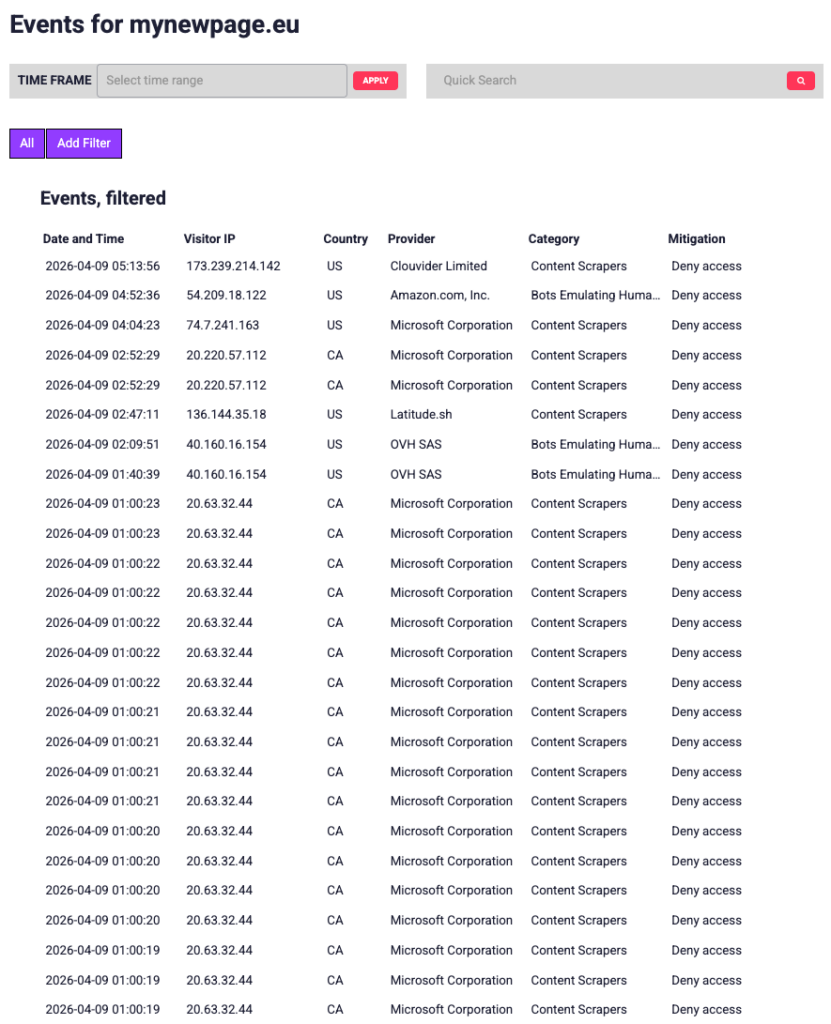
The Events log allows you to:
- analyse allowed and blocked traffic
- identify suspicious or repeated requests
- understand why a specific request was blocked
Logs and timezone
Blackwall logs use the UTC+0 timezone.
This means:
- the time shown in logs may differ from your local time
- you need to account for time differences when searching for specific events