
What is Oh Dear and what is it used for?
Oh Dear is a website and server monitoring tool that helps ensure your website is always operational, secure, and fast. Oh Dear sends notifications when a website goes down, when an SSL certificate is about to expire, when broken links appear on the site, or when performance drops noticeably.
It is a monitoring solution suitable for developers, website administrators, and regular users alike, allowing them to quickly detect and resolve technical issues before they affect the normal functioning of the website or its visitors.
What does the package include?
The Oh Dear service includes 2 website monitors (for example, two websites or a main domain with its subdomain).
Which monitoring checks are enabled by default?
When an Oh Dear account is first configured, the following default monitoring checks are enabled:
-
Uptime (website availability monitoring / “HTTP monitoring”) — checks that the site responds with a correct HTTP status code.
-
Performance — measures response times, DNS resolution time, TLS handshake time, and more.
-
SSL certificate monitoring — monitors the validity of the SSL certificate and checks that the connection is secure.
-
Broken links & mixed content — Oh Dear scans pages and notifies you of problems such as broken links or mixed content (e.g., HTTP and HTTPS content together).
NB! During setup, it is possible to choose default monitors or add additional monitors (such as Mixed Content, Scheduled Tasks, Sitemap, etc.).

Which notifications are enabled and where can they be configured?
Notification channels
In addition to email, Oh Dear supports many notification channels: Slack, SMS (via Nexmo), Discord, Telegram, Microsoft Teams, Pushover, Opsgenie, Google Chat, Webhooks, and others.
Notifications are sent, for example, when uptime goes down, performance becomes too slow, a certificate is about to expire, a broken link is found, and so on.
How and where to configure them?
If your account has multiple website monitors, you can configure Team notifications.
To configure notifications, click your account name in the upper right corner, then select Team notifications from the dropdown menu.
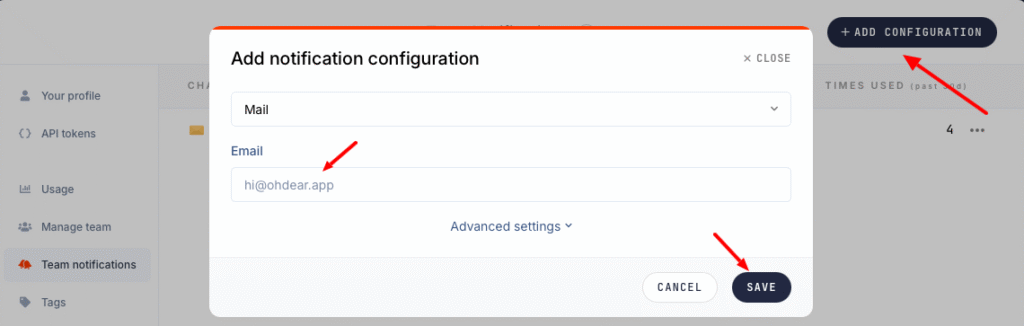
Click +Add configuration and then enter the desired notification channel — for example Mail (email). Then enter the email address and click Save.
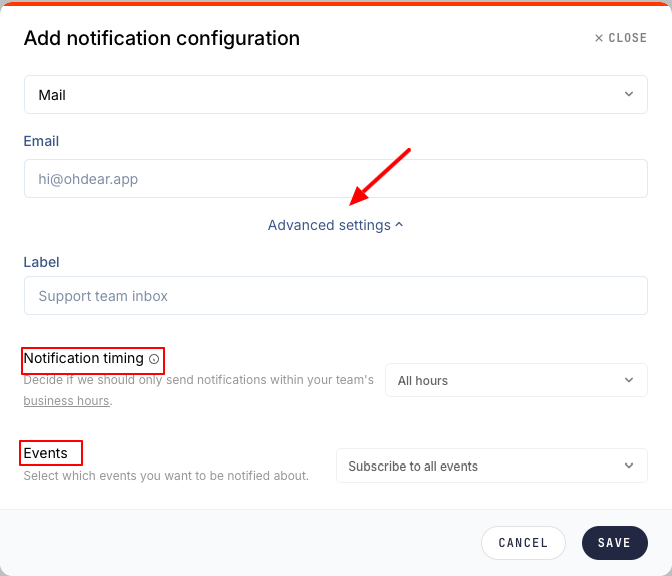
For more detailed settings, click Advanced settings, where you can choose the notification time (“Inside business hours”, “Outside business hours”).
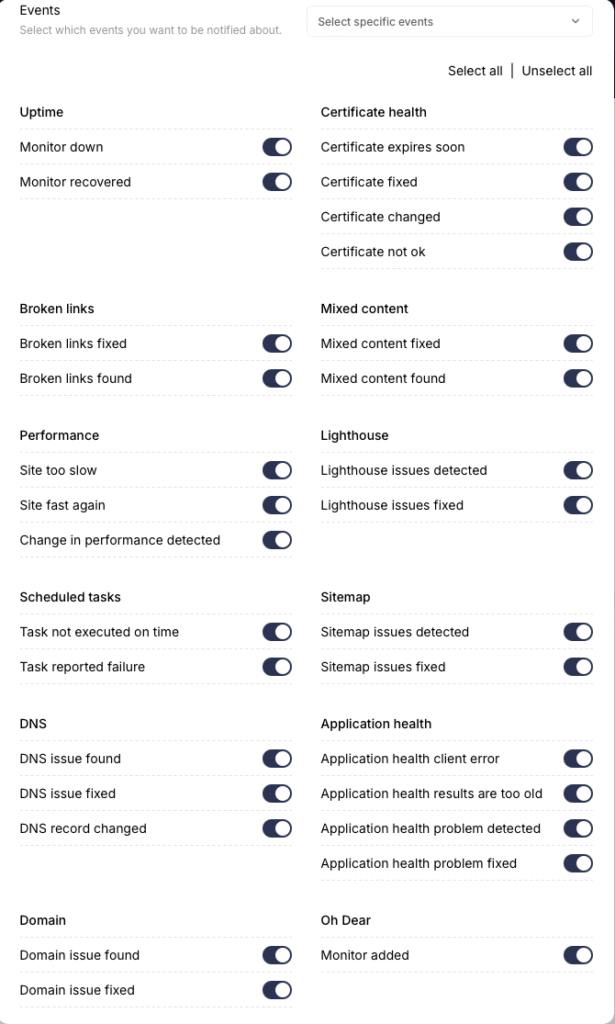
Under Events, you can select which issues trigger notifications (e.g., Performance, Broken links, etc.).
Where can per-monitor notifications be configured (not on the team level for all monitors)?
If your account has multiple website monitors and you want each monitor to send notifications separately (e.g., to different email addresses), then notifications must be added individually for each monitor:
Log in to your Oh Dear account, select a monitor, and then choose Notifications from the left-hand menu.
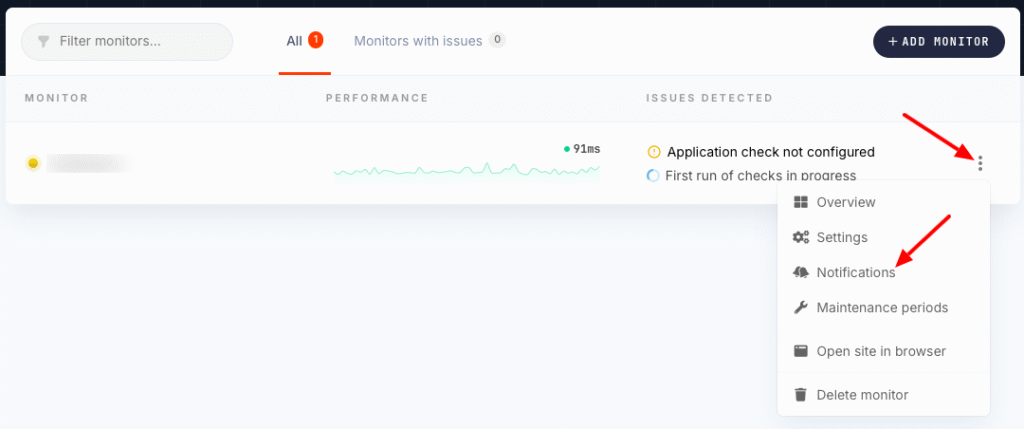
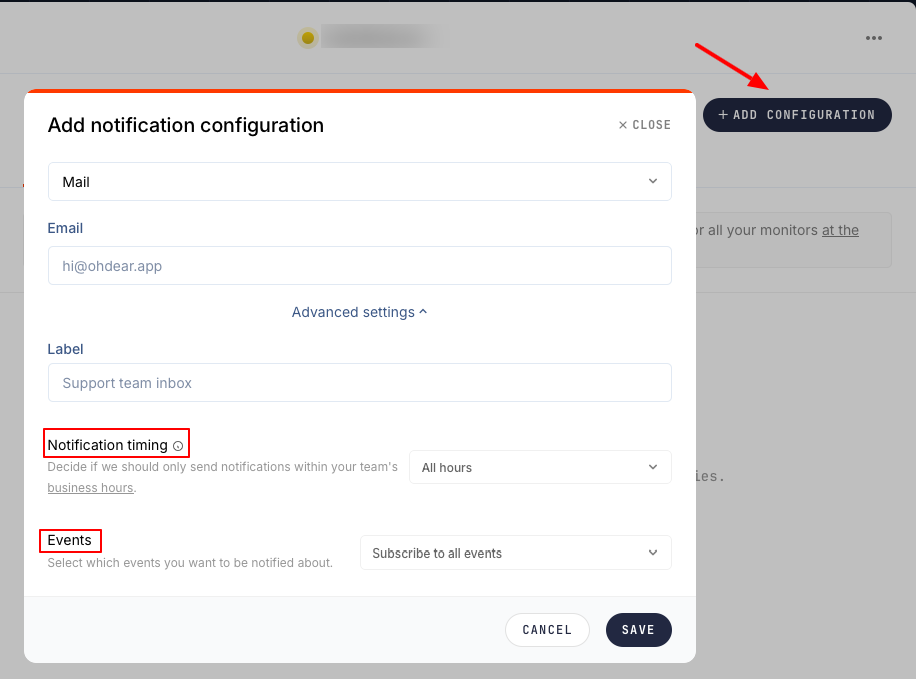
Then click +Add configuration, choose a channel (e.g., Mail), and enter the email address where you want to receive notifications. You can also configure the notification schedule (24/7 or, for example, only during business hours).
In the Events section, you can choose whether you want to receive notifications for all events or only for specific issues.
Where can you add a notification address (for example, an additional email address to receive alerts)?
Log in to your Oh Dear account, select a monitor, and then open Notifications from the left menu. Click +Add configuration, choose the channel (e.g., Mail), and enter the email address where you want notifications to be sent. You can also configure the notification schedule (24/7 or only during business hours).
In the Events section, you can choose whether to receive notifications for all events or only specific ones.
Label – if needed, assign a label to the channel.
Where can you add an additional monitor?
To add monitoring for another website or, for example, a subdomain:
Log in to the Oh Dear application, select Monitors, and then click + Add Monitor.
Enter the website address and choose which types of monitoring you want to enable (Website, Ping, TCP Port).

Where can monitoring checks be activated/deactivated (for example, sitemap or Lighthouse SEO)?
Activation:
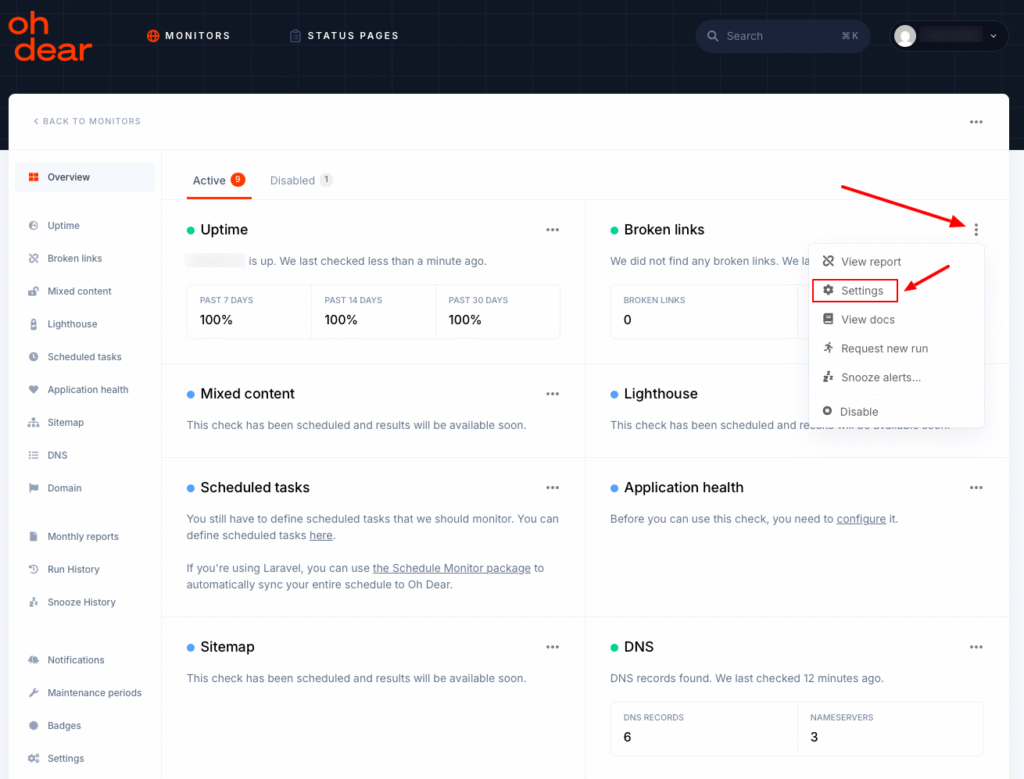
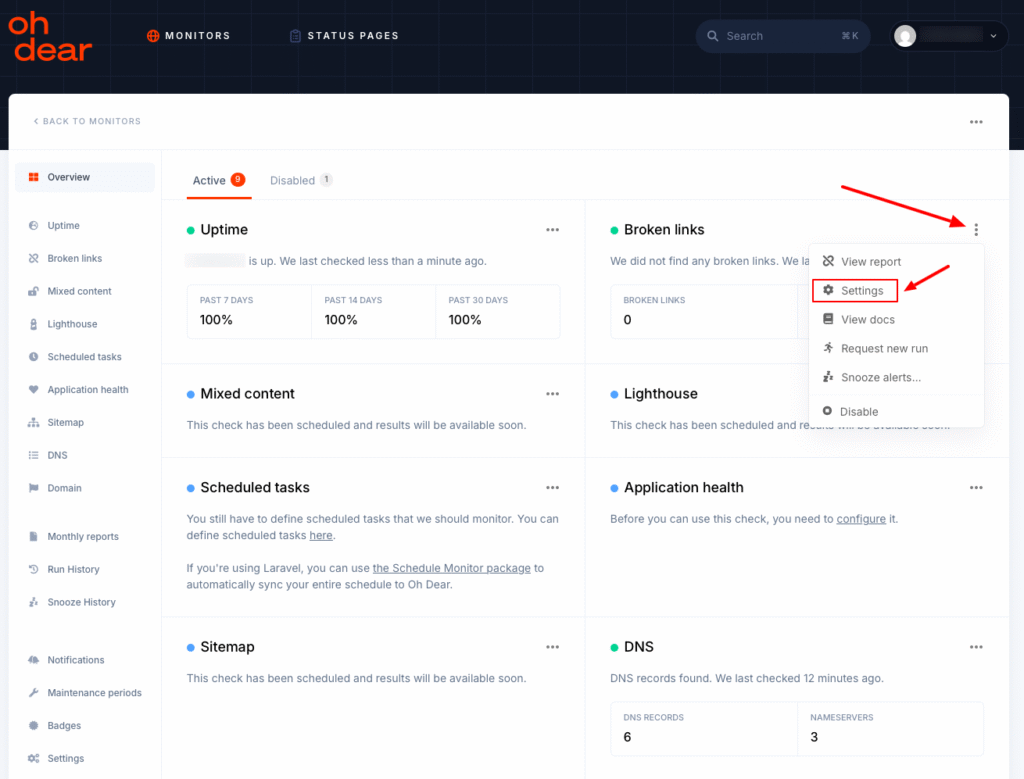
To activate a monitoring check, go to the Monitors page, click the three dots (kebab menu) next to the specific monitor, and select Settings.
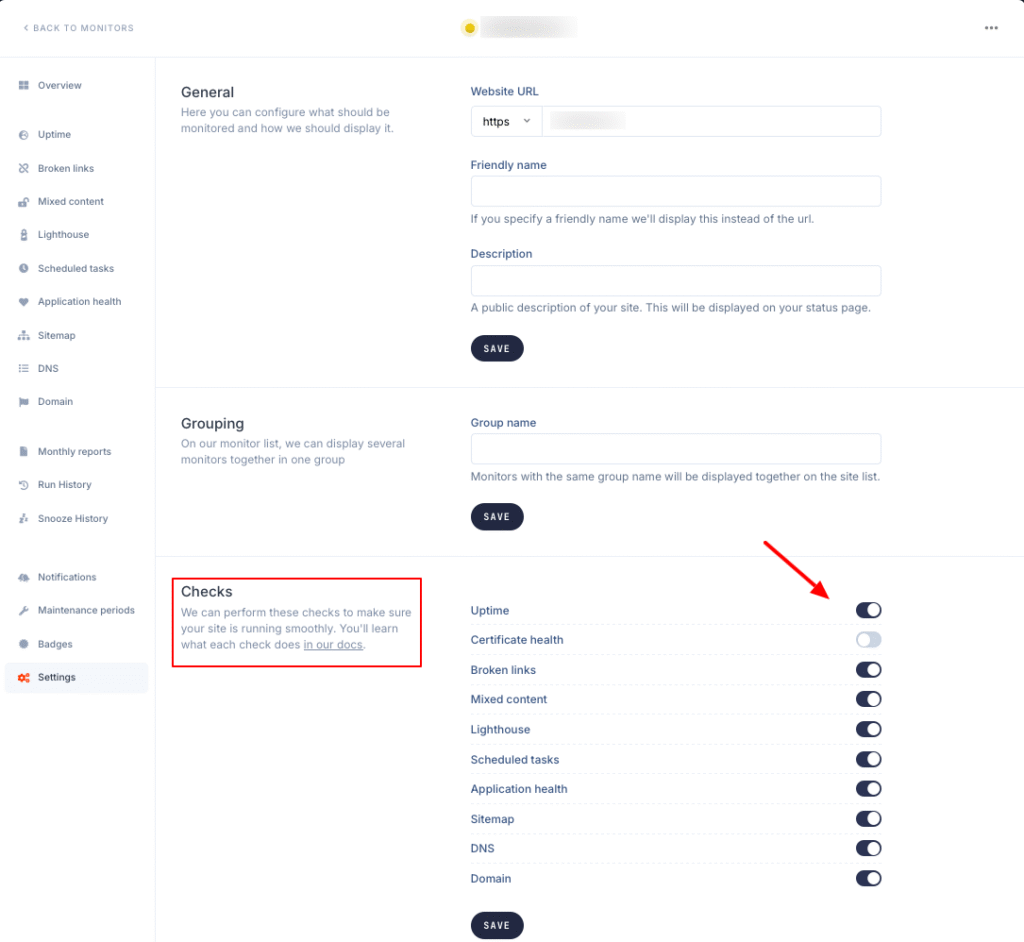
In the Checks section, choose which monitors you want to activate (for example Lighthouse, Sitemap, Broken links). Click Save to apply the changes.
Deactivation:
Monitoring checks can be deactivated in Settings under the Checks section.
Another option is to open the specific website monitor page, click the three dots next to the monitoring check, and choose Disable.
Where can fine-tuning be done?
Every monitoring parameter can be further customized according to your needs — in other words, “fine-tuned.”
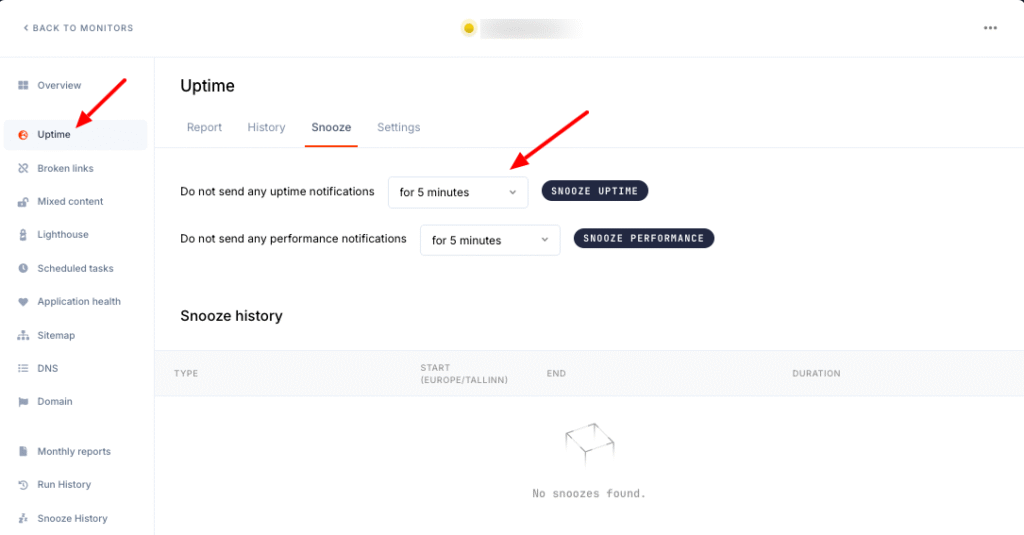
On the monitor management page, click the desired monitoring type on the left (e.g., “Uptime,” “Sitemap,” “DNS,” etc.). In the Settings menu, you can adjust and manage more detailed configurations.
Monitoring checks can also be paused. To do this, open the desired monitor, go to the Snooze section, and in the dropdown next to Do not send any notifications, choose how long notifications should be paused (e.g., “5 minutes,” “1 day,” “1 week,” etc.).
For DNS monitoring, you can choose which DNS records to track — for example A records, MX records, TXT records, etc. To configure these, click DNS in the left-hand menu of the monitor settings, then open Settings and select which DNS records should be monitored (A, AAAA, MX, TXT).
For Broken links monitoring, you can choose which types of links are checked, or set it so that only images are checked instead of links. To configure this, select the Broken links monitor, then Settings, and under Links to check select the desired options and click Save.
What should I do if I want to add more than 2 website monitors under the same account?
If you want to monitor more than two websites, you need to install an additional Oh Dear application in the My Zone control panel under the Zone+ section.
Using a second application comes with an additional fee.