
Changing DNS records may be due to a desire to connect a domain to various environments such as Google (Google Search Console, Google Analytics, Google Ads, Google Sites, etc.), Squarespace, ShopRoller, Shopify, WIX, Weebly, and so on.
Changing DNS records
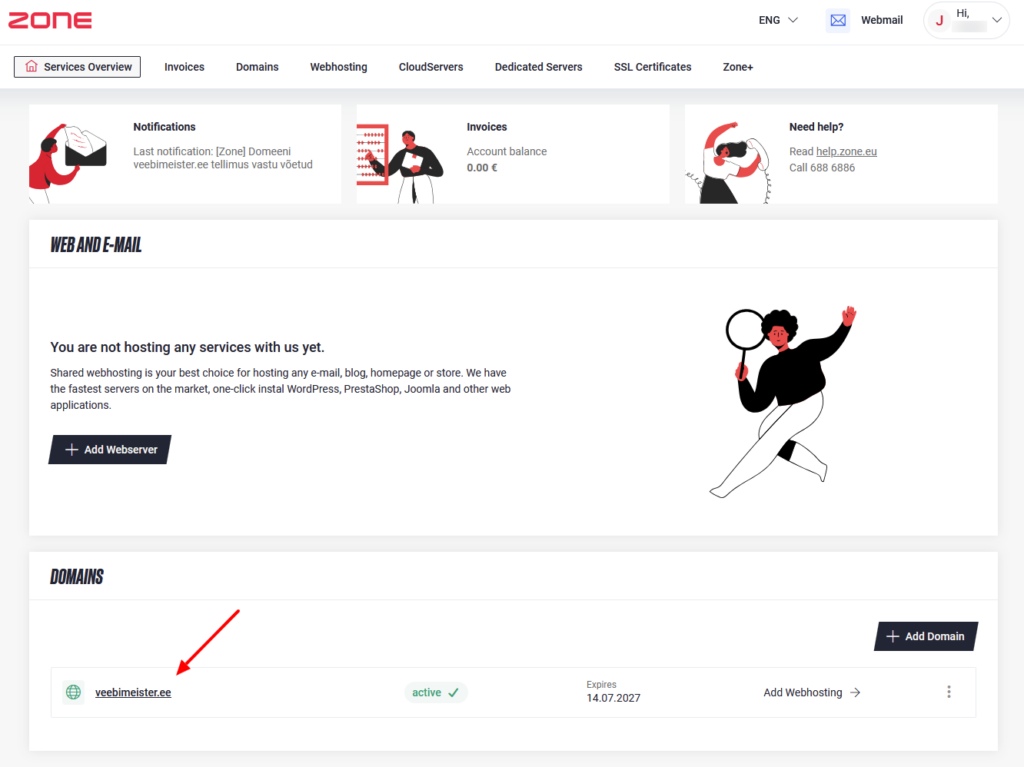
To change the domain’s DNS records, please log in to My Zone environment and click on the desired domain name from Services overview window.
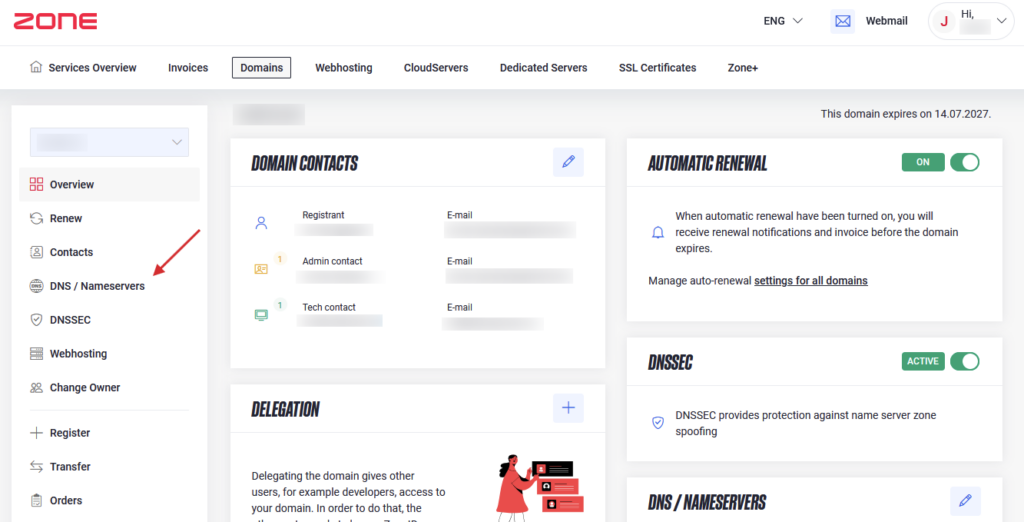
Next, choose DNS / Nameservers
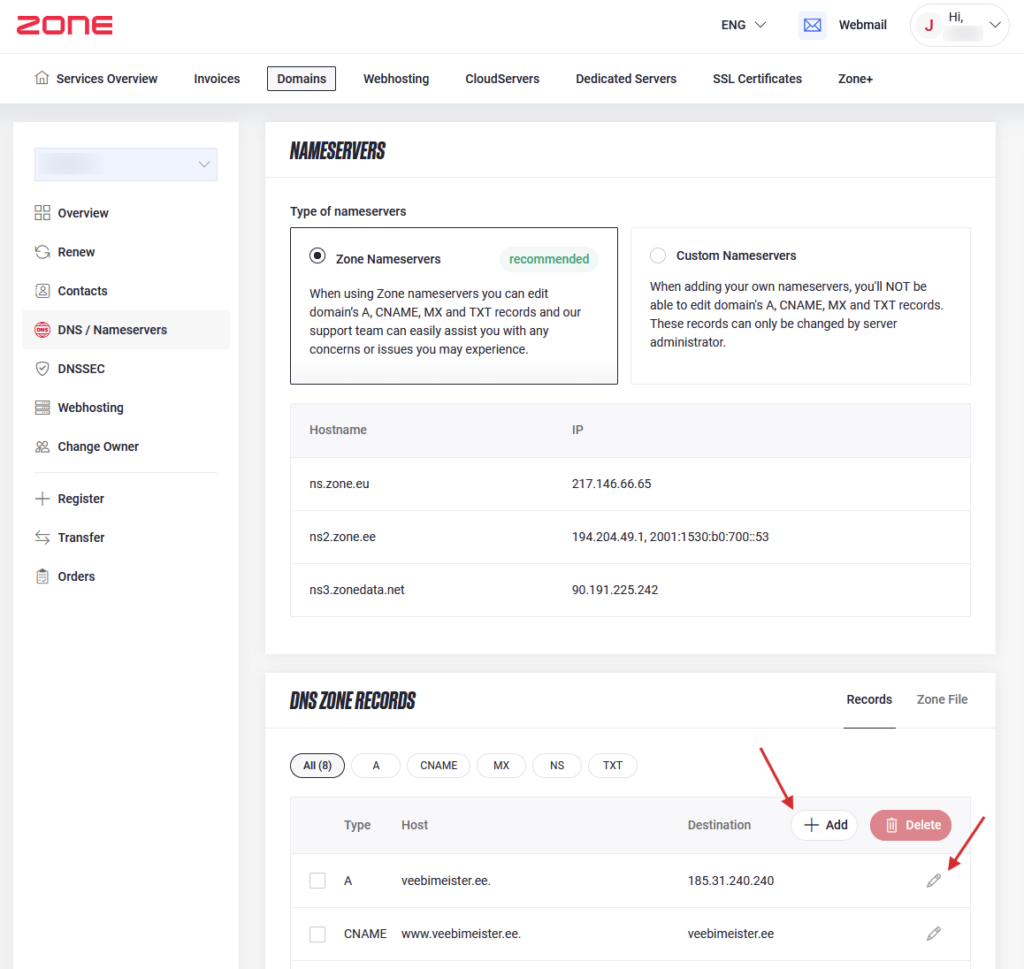
In the next window you can change existing DNS records by clicking the the Pencil icon behind the record or add a new record with + Add Record button
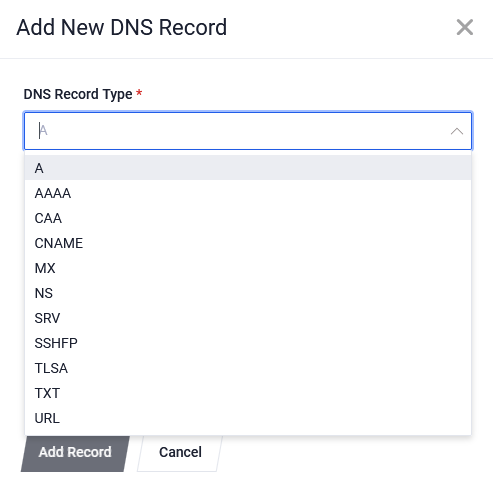
+ Add Record function allows you to add the following records for your domain: A, AAAA, CAA, CNAME, MX, NS, SRV, SSHFP, TXT, URL.
By using NS, you can add seperate nameservers for your subdomain.
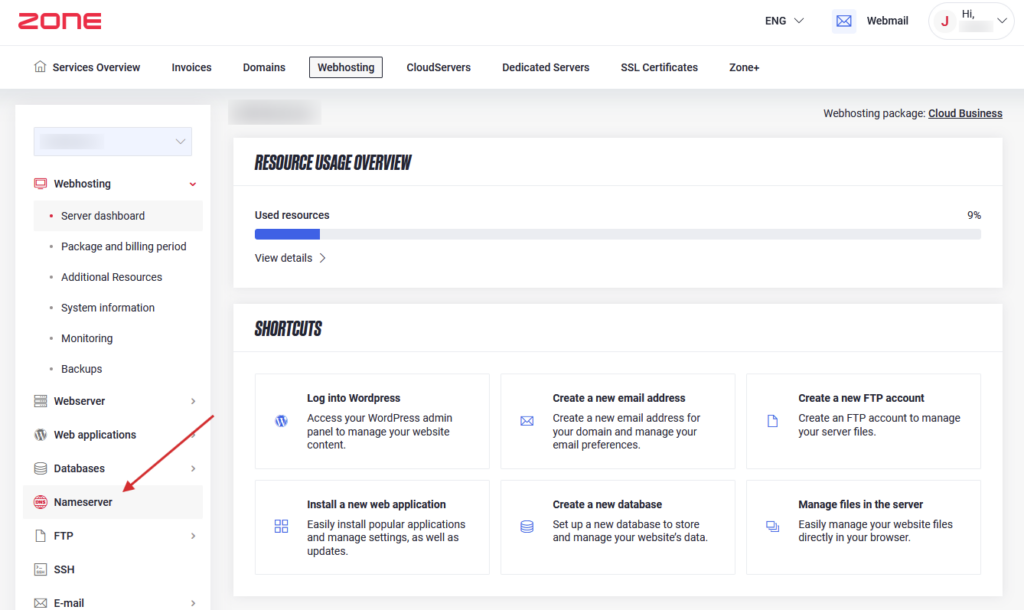
If the domain is located elsewhere, but uses Zone nameservers and webhosting
In this case, you can modify the DNS records for the domain from the server management menu in Webhosting > Nameserver.
Domain is located in Zone and uses Zone nameservers
If you only have a domain under Zone management that uses Zone name servers, you can change DNS records from the menu Domains > DNS / Nameservers.
Domain located elsewhere and not using Zone nameservers
If the domain is not administered by Zone and does not use Zone name servers, DNS records can be changed via the name server provider’s control panel.